Importing from other apps
You can import references with attachments intact from other reference management applications. The key is exporting the information from the other application in a format that Bookends can import.
Here are instructions for moving references and PDFs from EndNote, Papers, Zotero, Sente, and Mendeley to Bookends.
Step by step
From EndNote
From EndNote 7 or later, including all versions beginning with X.
There are two options for importing from EndNote:
1. Import from EndNote via AppleEvents
Note: There is a bug in EndNote that causes Unicode (accented) characters exported via AppleScript to Bookends to be garbled. If you have such characters in your EndNote references, use the second method below to import an XML file exported from EndNote.
In EndNote:
Launch EndNote and open the reference library you want to import.
If you want to import a subset of EndNote references, select those references in the library window.
In Bookends:
Choose File → Import References From EndNote → All References or Selected References
EndNote attachments will be copied to the "EndNote Attachments" folder in the default Bookends attachments folder (the EndNote file/folder organization will not be preserved). If you are done with EndNote, you can delete them from the EndNote attachments folder. If a PDF with the same name is already in the Bookends folder called "EndNote Attachments", the EndNote PDF not be moved and the existing PDF will be considered the attachment.
You can import references to a specific Bookends group by selecting the Bookends group to use before importing.
2. Import a file exported from EndNote
In EndNote:
Select the references you want to transfer.
Choose File → Export…
Select XML from the pop-up menu, select the destination, then click Save.
In Bookends:
Choose File → Import References → From File or Clipboard…
Select XML from the pop-up menu, then click on OK.
Use the Get File dialog to locate and select the XML file exported from EndNote, then click Open.
You can also drag and drop the exported file onto a Bookends library window.
If your EndNote library has attachments, such as PDFs, you can have Bookends recognize them by moving (or copying) them to the Bookends attachment folder (assigned in Bookends Settings), or assigning the folder in which EndNote put the attachments as the Bookends default attachment folder.
Step by step
From Papers
Note: According to the ReadCube Papers web site, Papers 3 is only stable on macOS Big Sur 11.2 and earlier. Because Papers 3 must be running for the transfer of reference and PDF data to work, the instructions below must be undertaken with a version of macOS that supports Papers 3.
1. Papers 3
For Papers 3 only. These instructions ensure that PDF annotations made in Papers 3 are preserved. Special thanks to Matthias Steffens for creating the AppleScript.
Important: If you are running macOS 10.15 (Catalina) or later you must allow Bookends Full Disk Access in System Preferences → Privacy.
In Papers 3:
In Preferences, Sync tab, turn OFF syncing.
Go to Preferences → Library → and CHECK "Rename files in library folder". If it's already checked, UNCHECK and then RE-CHECK it. This is important. Then click Apply.
Now wait while the Finder renames the PDFs. This can take quite a bit of time depending on how many attachments you have. We suggest perhaps 5-10 minutes per 1000 attachments. You can check the Finder's progress by double-clicking the Papers 3 library file (which contains your references) in the Finder and opening the "Files" folder. If the file names are machine-readable strings of letters and numbers then the Finder is not finished.
Once the attachments are renamed, make sure that all the references you want to import are showing in the Papers 3 library window.
File → Export PDF Files and Media, and in the resulting Save Dialog click the Option button and make sure "Include annotations" is checked.
Export the PDFs to the Bookends default attachment folder (not a subfolder).
In Bookends:
A Bookends library must be open. Create a new empty library if you want it to contain only the references imported from Papers 3.
If you want to import to a particular static group, select that group.
File → Import From Papers 3.
You can immediately rename the attachments with Refs → Global Change → Rename Attachments → selected references.
Note: Bookends will also import manual collections made in Papers 3. The limitations are:
Collection hierarchies will not be preserved (i.e. the manual collections will be converted to Bookends static groups at the top level), and
If you have nested manual collections, the references will be imported into a single static group that has the name of the topmost collection.
2. Any version of Papers
PDF annotations made in Papers will not be preserved.
In Papers:
File → Export the references to disk in the EndNote XML format.
In Bookends:
Use File → Import and select the XML file, or drag and drop the XML file onto the Bookends library window.
The EndNote XML import filter will automatically be selected, click Open.
Collection (group) names will not be exported/imported, just references.
If your attached PDFs are not found in Bookends, you must tell Bookends where they are. Either move the PDFs from where Papers stored them to the Bookends default attachment folder, or in preferences set the default attachment folder location to the folder where they are currently stored.
Important: PDF annotations you added in Papers itself will not transfer — they are not stored in the PDFs. If you want them preserved, you must do the following:
In Papers:
Files → Export → PDF Files and Media.
In the Export dialog, click Options and check "Include annotations".
Export the PDFs to a folder on the Desktop you create. The names of these attachments are not the same as the names in the EndNote XML file, so Bookends will not find them.
In Bookends:
Create a new empty library and drag and drop PDFs exported from Papers onto the window in batches of 100 or less
New references will be made for each PDF and the metadata imported if found online.Global Change → Removed Orphaned Attachments to remove the names of the PDFs Bookends could not find.
Do Autocomplete Paper for references where the PDF metadata could not be found online.
Step by step
From Zotero
One-time importing from Zotero
In Zotero:
Export the Zotero library using File → Export Library.
Select RIS as the export format and tick the Export Files checkbox.
Zotero will export the references in RIS format to a folder along with all associated attachments (PDFs) to a subfolder called "files".
In Bookends:
Make sure the "RIS" import filter is active (i.e. checked in the Import Filters dialog box).
Set File → Import Text Encoding to “UTF-8”.
Choose File → Import References or drag and drop the file "My Library.ris" that was exported by Zotero ("My Library" will be the name of the Zotero library).
Bookends will import the references and attach any pdfs associated with them. A copy of the PDF will be moved to the default Bookends attachment folder. Once you have assured that the process went well, you can Trash the PDFs and the .ris file exported by Zotero.
Repeatedly importing from Zotero
As of version 14.2.1, Bookends provides a mechanism to facilitate repeated imports. This is accomplished with a special watch folder that notifies Bookends when it receives references and attachments from Zotero.
In the Finder:
Right-click on the new watch folder (e.g. one on the Desktop) and select Services -> Folder Action Setup.
Click the Run Service button when prompted.
Tick the checkboxes for "Enable Folder Actions", the name of the folder, and the script "Bookends - Import Zotero export.scpt". Close the window.
In Bookends:
1. Open the receiving library.
In Zotero:
Select the references to export, right-click, and choose "Export Item(s)…".
In the export dialog select the format "RIS", and under Translator Options check other items you may want to export (Export Notes, Export Files, Include Annotations).
Export to the Zotero watch folder (do not change the name of the data folder Zotero creates, it must be "Exported Items").
Zotero does not provide feedback during the export, so be patient.
Once Bookends has been notified, the import will begin and a progress window will keep you informed.
Bookends will import the data, move the attachments to the Bookends default attachment folder, and then move the exported data folder to the Trash.
If a Bookends static group was selected, the imported references were added to it.
Bookends uses the import filter "Zotero RIS.fltr", which adds the keyword "Imported from Zotero" to each imported reference. You can modify this behavior in the Import Filters Manager if you like.
If the Zotero attachments are on your local HD (not just in the cloud), you will have two copies after importing, one in the Zotero and one in the Bookends attachments folder. If you no longer want them in Zotero, delete them in the Zotero app or in the Finder.
Step by step
From Sente
Note: PDF annotations created in Sente are stored in its database, not the PDF, and are not accessible by other apps. To preserve these annotations, you must open the PDFs in Sente and export them "With Sente Annotations".
There are two options for importing from Sente:
1. Import via AppleEvents
In Bookends:
If you want to import to a specific static group, select it. If not, select All.
Use File → Import References → From Sente. If Sente is running, it will come to the front.
In Sente:
Select the references you want to import (Command-A selects all). When finished, press Command-Y. You may also see this dialog in Sente:
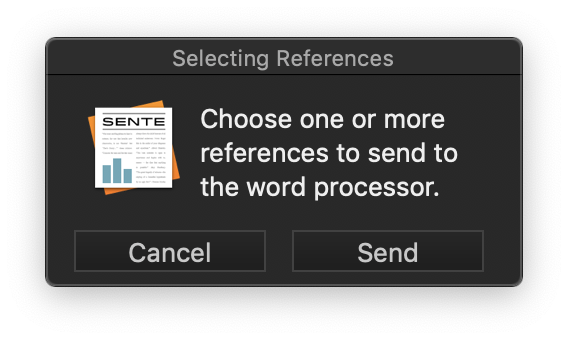
Clicking Send is the same as pressing Command-Y. Note that due to limitations in Sente's support for AppleEvents, clicking the Cancel button is the same as clicking Send.
In Bookends:
Bookends will return to the front and the references and their attachments will be imported.
Sente attachments will be copied to the “Sente Attachments” folder in the default Bookends attachments folder -- you can keep them there or place them at the root level of the default attachments folder (or in any other subfolder). If you are finished with Sente, you can delete the original attachments from the Sente (not the Bookends) attachments folder.
You can preserve Sente collections by importing them individually to Bookends groups (select the Bookends group to use before each import).
If you take too long to select the references in Sente, Bookends will timeout. If this happens, repeat the import process.
Images stored in Sente notes will not be imported.
2. Import a file exported from Sente
In Sente:
File → Export the references to disk in SenteXML format.
In Bookends:
Use File → Import References → From File or Clipboard and select the XML file, or drag and drop the XML file onto the Bookends library window.
The Sente XML import filter will automatically be selected, click Open.
Collection (group) names will not be exported/imported, just references.
Images stored in Sente notes will not be imported.
If your attached PDFs are not found in Bookends, you must tell Bookends where they are. Either move the PDFs from where Sente stored them to the Bookends default attachment folder, or in preferences set the default attachment folder location to the folder where they are currently stored.
Step by step
From Mendeley
In Mendeley:
Select the references to export and choose File → Export.
Select EndNote XML as the export format and click Save.
Mendeley will export the references to a text (.xml) file and associated attachments (PDFs) to a folder with the name of your database and the extension “.Data”.
In Bookends:
If you want to import to a specific static group, select it. If not, select All.
Drag and drop the .xml file onto the library window, then click OK to import the references.
Drag the contents of the “.Data” folder (or the folder itself) to the Bookends default attachment folder.